Create BarCodeScan Custom for your application
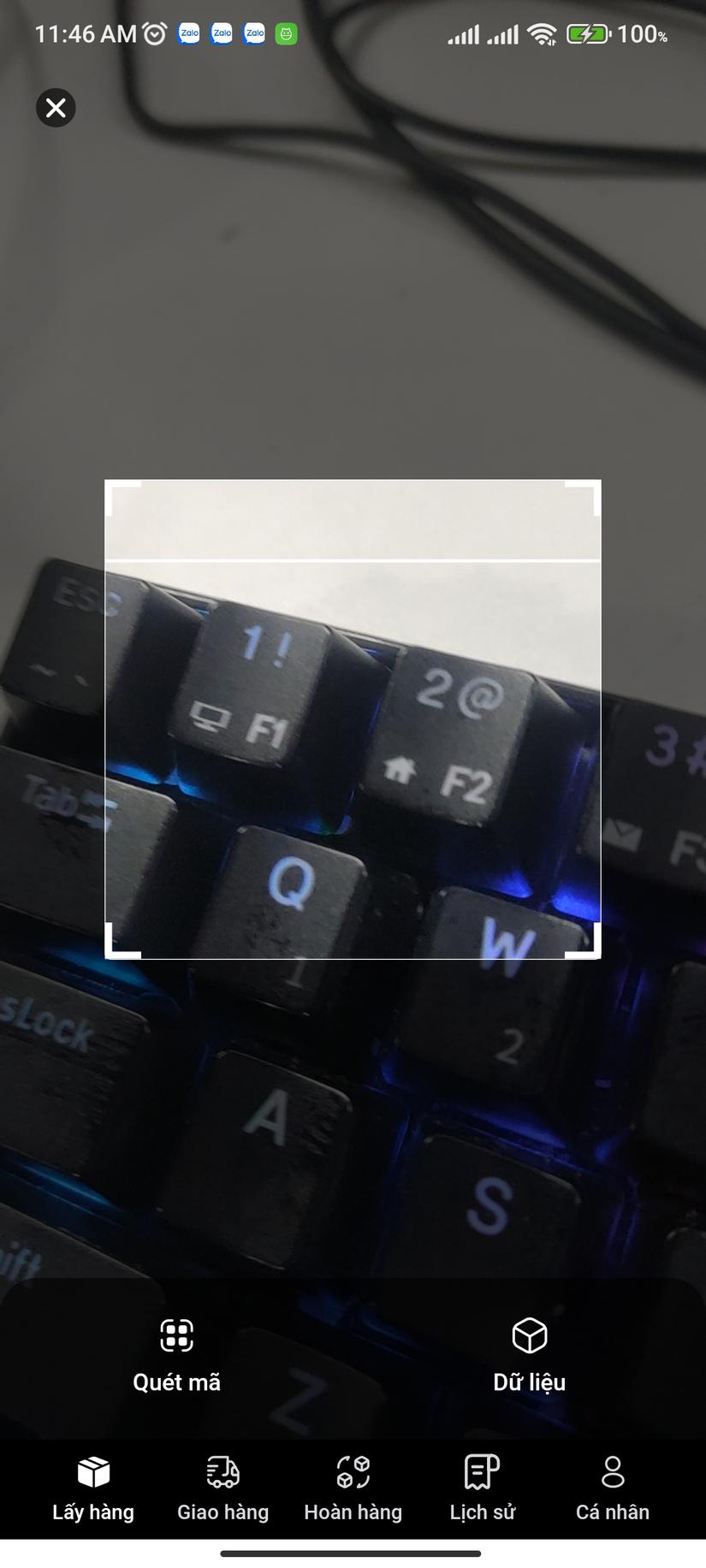
* Step 1: FullScreen BarCodeScan with Width and Height
* Step 2: Create Dark skin for screen
* Step 3: Add edge for scan
* Step 4: Add animation scan
import React,{ useState, useEffect, useRef }from'react';import{ Text, View, StyleSheet, Dimensions, StatusBar, TouchableOpacity, Animated }from'react-native';import{ Ionicons }from'@expo/vector-icons';import{ BarCodeScanner }from'expo-barcode-scanner';import Constants from'expo-constants';import IconSnappy from'@components/IconSnappy';const deviceHeight = Dimensions.get('window').height;const deviceWidth = Dimensions.get('window').width;

type IProps ={onScan:(event: any)=>void;onClose:()=>void;
  children: any;};exportdefaultfunctionSnyBarCodeScanner(props: IProps){const{ onScan, onClose, children }= props;const[hasPermission, setHasPermission]= useState<boolean |null>(null);const[screen, setScreen]= useState<string>('scan');const[scanned, setScanned]= useState<boolean>(false);const[sizeQrCode, setSizeQrCode]= useState<any>({ width:0, height:0});const lineAnim =useRef(newAnimated.Value(0)).current;constonLineLayout=(event: any)=>{const{ x, y, height, width }= event.nativeEvent.layout;setSizeQrCode({ width: width, height: height });};useEffect(()=>{constgetBarCodeScannerPermissions=async()=>{const{ status }: any =await BarCodeScanner.requestPermissionsAsync();setHasPermission(status ==='granted');};getBarCodeScannerPermissions();},[]);useEffect(()=>{handleAnimationLine();},[]);consthandleAnimationLine=()=>{
    lineAnim.setValue(0);
    Animated.timing(lineAnim,{
      toValue:1,
      duration:8000,
      useNativeDriver:false,}).start(()=>handleAnimationLine());};const transformLine = lineAnim.interpolate({
    inputRange:[0,1],
    outputRange:[0, sizeQrCode?.height],});consthandleBarCodeScanned=({ type, data }:{ type: any; data: any })=>{
    onScan &&onScan(data);setScanned(true);alert(`Bar code with type ${type} and data ${data} has been scanned!`);};if(hasPermission ===null){return<Text>Requesting for camera permission</Text>;}if(hasPermission ===false){return<Text>No access to camera</Text>;}return(<View style={styles.main}><StatusBar translucent={true} backgroundColor="transparent" barStyle="light-content"/>{(screen ==='scan'&&(<BarCodeScanner onBarCodeScanned={scanned ?undefined: handleBarCodeScanned} style={[styles.container]}><View style={styles.layerTop}></View><View style={styles.layerCenter}><View style={styles.layerLeft}/><View style={styles.focused} onLayout={onLineLayout}><EdgeQRCode position="topRight"/><EdgeQRCode position="topLeft"/><Animated.View
                style={[{
                    transform:[{ translateY: transformLine }],},
styles.lineAnim,]}/><EdgeQRCode position="bottomRight"/><EdgeQRCode position="bottomLeft"/></View><View style={styles.layerRight}/></View><View style={styles.layerBottom}/></BarCodeScanner>))||(screen ==='data'&&<View style={{ backgroundColor:'white'}}>{children}</View>)}{/* Actions */}<TouchableOpacity onPress={onClose} style={styles.close}><View style={{ backgroundColor:'rgba(0,0,0,.6)', width:22, height:22, alignItems:'center', justifyContent:'center', borderRadius:13}}><Ionicons name="ios-close" size={20} color="#fff"/></View></TouchableOpacity><View style={styles.bottomAction}><TouchableOpacity onPress={()=>setScreen('scan')}><View style={styles.bottomButtonAction}><IconSnappy name="scan-barcode" color="#fff" size={20}/><Text style={styles.bottomTextAction}>Quét mã</Text></View></TouchableOpacity><TouchableOpacity onPress={()=>setScreen('data')}><View style={styles.bottomButtonAction}><IconSnappy name="package-outline" color="#fff" size={20}/><Text style={styles.bottomTextAction}>Dữ liệu</Text></View></TouchableOpacity></View></View>);}constEdgeQRCode=({ position }:{ position: string })=>{const edgeWidth =20;const edgeHeight =20;const edgeColor ='#FFF';const edgeBorderWidth =4;const edgeRadius =0;const defaultStyle ={
width: edgeWidth,
height: edgeHeight,
borderColor: edgeColor,};const edgeBorderStyle: any ={
topRight:{
borderRightWidth: edgeBorderWidth,
borderTopWidth: edgeBorderWidth,
borderTopRightRadius: edgeRadius,
top: edgeRadius,
right: edgeRadius,},
topLeft:{
borderLeftWidth: edgeBorderWidth,
borderTopWidth: edgeBorderWidth,
borderTopLeftRadius: edgeRadius,
top: edgeRadius,
left: edgeRadius,},
bottomRight:{
borderRightWidth: edgeBorderWidth,
borderBottomWidth: edgeBorderWidth,
borderBottomRightRadius: edgeRadius,
bottom: edgeRadius,
right: edgeRadius,},
bottomLeft:{
borderLeftWidth: edgeBorderWidth,
borderBottomWidth: edgeBorderWidth,
borderBottomLeftRadius: edgeRadius,
bottom: edgeRadius,
left: edgeRadius,},};return<View style={[defaultStyle, styles[position +'Edge'], edgeBorderStyle[position]]}/>;};const opacity ='rgba(0, 0, 0, .6)';const styles: any = StyleSheet.create({// action
close:{ position:'absolute', top: Constants.statusBarHeight +20, left:20, width:40, height:40},
bottomAction:{
backgroundColor:'rgba(0,0,0,.6)',
flexDirection:'row',
alignItems:'center',
justifyContent:'space-between',
height:90,
position:'absolute',
width: deviceWidth,
bottom:0,
left:0,
borderTopRightRadius:20,
borderTopLeftRadius:20,},
bottomButtonAction:{ alignItems:'center', width: deviceWidth /2},
bottomTextAction:{ color:'white', fontSize:13, lineHeight:22, fontFamily:'Roboto_500Medium', marginTop:4},// layout
main:{ flex:1, flexDirection:'column', justifyContent:'center', alignItems:'center'},
container:{
flex:1,
flexDirection:'column',
width: deviceHeight,
height: deviceHeight /2,},
layerTop:{
flex:1,
backgroundColor: opacity,},
layerCenter:{
flex:1,
flexDirection:'row',},
layerLeft:{
flex:1,
backgroundColor: opacity,},
focused:{
flex:1,
position:'relative',
borderWidth:0.5,
borderColor:'#fff',
borderRadius:4,},
layerRight:{
flex:1,
backgroundColor: opacity,},
layerBottom:{
flex:1,
backgroundColor: opacity,},// edge
topLeftEdge:{
position:'absolute',
top:0,
left:0,},
topRightEdge:{
position:'absolute',
top:0,
right:0,},
bottomLeftEdge:{
position:'absolute',
bottom:0,
left:0,},
bottomRightEdge:{
position:'absolute',
bottom:0,
right:0,},
lineAnim:{ height:2, backgroundColor:'#fff'},});Nguồn: viblo.asia